A Tale of Two Custom Covers: A Self Publishing Author’s Reaction

After seeing her two custom covers, Ellen wrote me this email (after all, I’m just an email away for our authors), which she gave me permission to share:

“Brent,

Since I was quick to yell for help a few weeks ago, I thought it only fair that I also yell to shout Congratulations and WOW!  I received my two options for the cover of my book: Tales of a Lion from Jennifer Rush on Thursday and I LOVE THEM BOTH!!!!  When I think about the possible cover I threw together and what I am being presented with now, I have to wonder – What was I thinking????  Your team is fabulous!!!!

Incidentally, a sequel is planned for this book.  I would like very much to use both of these – particularly since I can’t decide between them now.  Don’t know how that would work out…or if it is even permitted.  The sequel will be entitled:  The Lonesome Wail of the Lion’s Roar.

In between times, I will complete what I am writing now:  Wish List….which I would like to have Outskirts publish as well.  I am targeting a handover to Outskirts sometime January 2013.  That will leave me writing the sequel during 2013 and publishing that no later than January 2014.

I hope I can use the second option of the cover!  Mostly, I just wanted whoever did these to know how very much I appreciate their work.

Excellent Job!

Ellen”

And yes, we arranged for her to secure BOTH custom covers, one for her first book and the other for her sequel.  Another happy ending for another Outskirts Press author…

A Tale of Two Custom Covers: Author Submitted vs. Professionally Designed

In yesterday’s post I talked about our custom cover option and how we often have to walk a delicate line when working with authors who have submitted their own cover designs and who we want to diplomatically point toward a “better” direction.  One of our authors, who has given me permission to recount her experience, recently went through this exact scenario. She had designed her own cover and submitted it for her book. It looked like this:

This is a relatively average example of the author-submitted covers we receive at Outskirts Press. They are almost always white (since designing on color or backgrounds introduces a whole host of technical problems that most authors simply choose to eschew) and it lacks a spine and a back cover.  But that’s why they come to us, right? To make their book even BETTER than it already is… In some cases we’re able to convince the author to consider a professionally-designed custom cover, given the overall importance of covers. In other cases, we’re not so successful and they end up publishing what they (or their designer friends) have designed in a word processor.    Fortunately, in Ellen’s case, we were successful in communicating to her the importance of a great cover; and as a result, our book designer created the following two custom covers for her to choose from:

What was Ellen’s reaction? Stay tuned…

A Tale of Two Custom Covers: Part One

One of our most popular options at Outskirts Press is our Custom Cover option, where one of our talented designers will create TWO completely separate custom covers for the author’s book, based upon the author’s own input and preferences.  The author then selects the one he/she likes best and provides further input to fine-tune it.  In general, covers are one of the “trickier” aspects of what we do because it’s a passionate subject.  All authors have very strong feelings about their covers. Many begin the process already with a cover clearly in their mind. In fact, many have already designed what they believe is a very good cover. In those cases, some authors are resistant to consider any other alternatives, even if their own cover may lack basic components of a true cover design (like a spine or a back, for instance).    It sometimes puts our people in awkward positions where they have to walk a fine line between supporting the author’s desires and at the same time bring to the author’s attention the reality that their covers, actually, aren’t very… well… good.

More often than not, we acquiesce and watch the author use what they supplied. After all, it’s their book.  But it can be frustrating, because our designers have often created really wonderful covers that all too often go to waste at the author’s whims.  On one hand, we always want our books to look as awesome as possible; on the other hand, we want to answer to the author’s wishes and give them exactly what they want. Granted, sometimes these are financial decisions, since a professional custom cover design starts at $299 (compare that to $900 and higher at other self publishing firms); but other times the decision doesn’t seem to be based upon anything other than a skewed reality of what comprises good cover design.

So with one of our authors’ kind permission, I’d like to present just such a case study over the next two days… stay tuned…

Facebook Timeline Apps Navigation

For the last several posts I have been discussing tricks to get the most out of the timeline layout on Facebook. This has involved designing an effect cover graphic and writing an effective “About Box.”  To the right of the “About Box” are four app boxes (which only show up if you actually have apps installed.) If you don’t have any apps, you might only have two boxes appearing to the left of your About box, one for Photos and one for your number of “Likes.”  When/if you install new Apps to your Facebook page, those Apps will appear in this space. You can install up to 12 Apps. You can organize the order in which APPS appear on your page by hovering your mouse over them, clicking on the resulting “pencil icon” and then rearranging their order by selecting a choice from among the “Swap positions with…” list in the pop-up menu that appears.

Photos always remains directly to the right of the About box, and you cannot adjust its position. But you CAN adjust the Position of the “Likes” box but uploading more helpful apps.  There are literally thousands of choices (50,000+ actually) , and the closest thing Facebook offers to a directory of its available apps is this “Apps & Games Dashboard” which is available by clicking here.

Install at least three Apps, so you have four navigation boxes to the right of your “About Box.”  Then, edit the thumbnail image so that each App features an eye-catching, attention-grabbing graphic that will encourage your visitors to actually click on it.    By combining all these tactics together, you and/or your company will have a Timeline-optimized Facebook presence, just like Outskirts Press. Have fun!


Getting the most out of your ABOUT BOX on Facebook Pages

With the Timeline theme on Facebook pages, the “About” box is more important than ever.  Yes, the “cover graphic” allows you to brand your page, but according to Facebook parameters, your cover graphic is not allowed to contain a URL.  Fortunately, the About Box allows them, so be sure to take advantage of that.  And, the good news is, FB automatically turns any URL that you include there into an active link that actually goes to your company website. It’s a valuable piece of real estate that you don’t want to waste, so word your “About” box in such a way to leave room for your URL to appear (rather than being truncated).  This means your About text needs to be approximately 20 words long, since you have a maximum of 3 lines to include both your About text and your URL.  In the case of Outskirts Press, our About language is the following, which fits exactly into the allocated space in the About box:

Outskirts Press offers full-service, high-quality, custom book publishing and marketing services. Keep 100% of your rights & royalties at www.OutskirtsPress.com.

What we offer, our benefits, and our URL. Short, sweet, effective.

To the right of the About box are the 4 app navigational boxes. I call them navigational boxes because if you manage them effectively, you can treat them like website navigation, taking your Facebook users to other pages of your Facebook presence, where each page can then be customized to accomplish tasks the main timeline page can’t do very well (ie, sell or market your stuff).  We’ll discuss that next time…

Facebook Timeline Cover Graphics

In yesterday’s post I mentioned the three things to consider when creating your “Cover” graphic for your company FB page now that the Timeline theme has removed the ability to have “Welcome Pages.” Those three considerations are

1) Identify your company’s core benefits 2) Incentive ”Likes” in a similar manner to the previous Welcome pages 3) Aesthetically design around the FB elements that are super-imposed over the cover graphic

As a result of these three goals, here is the cover graphic we created for Outskirt Press (it might be a little “squashed” since the optimal width for this graphic is 851, which exceeds the amount of space available on this blog. Nevertheless it gives you the idea, and you can see the “real” cover graphic on our Facebook page by clicking here.

In our case, our core benefits are that we help authors write anything, publish everything, and market everywhere. So those benefit statements are a part of the design.

We incentivize links by highlighting the current months “perk” or “topic” along with the next month’s upcoming topic, and then we graphically point in the general vicinity of the “like” button of FB, as well-designed “Welcome” pages did in the past.  By referring to both the current and up-coming months, we give incentive for friends to “stay with us” even if the current month’s event/promotion is nearing the end.  And finally, we designed this graphic to aesthetically accommodate the FB lay-overs.  The “white space” underneath the couple is where Facebook overlays the avatar graphic, so we matched the treatment of that graphic, even down the 3 pixel border separating the gray lines from the image.  So it actually looks like this on Facebook:

And that brings us to the rest of the header space: the “About box, the photos, and the other three “navigational” graphics FB allows. We’ll discuss more of that next time…

Creating a cover graphic for Facebook Timeline

The “Survivor Graphic” I discussed last week was a stop-gap, a temporary solution to get something, anything, into the “Cover” spot when Facebook launched the Timeline lay-outs.  But it wasn’t optimal.  For one, it failed to say what Outskirts Press does – what its benefits are to its users/clients/authors.  And it didn’t compensate for the loss of “Welcome pages.”

Welcome pages, as many FB marketers know, were specific app-pages that could be created to incentivize likes, by promoting upcoming perks, drawings, promotions, etc.  I discussed how to create a Welcome page in a previous series of posts toward the beginning of this year when Outskirts Press was putting its own Welcome Page into use.  One of the nice things about the old Welcome pages was that by manipulating a setting in Facebook, you could direct new users to your Welcome Page rather than your wall, theoretically increasing the odds of them “linking” you.  Actually, this practice wasn’t theoretical at all — it was statistically proven to be successful.

The new Timeline theme removes the ability to set any other page as the landing page.  Everyone comes to the same page when they visit Outskirts Press on Facebook, and we can’t send them anywhere else, not even to an alternate app-page.

So, then, with the Cover Graphic, the question becomes, “How can I use the Cover Graphic to: 1) Identify my company’s core benefits and 2) incentive “Likes” in a similar manner to my previous ‘Welcome page’ while 3) aesthetically designing around the FB elements that are super-imposed over my cover graphic?”

That’s a tall order, but with some creativity and a talented designer, you can pull it off, and I’ll share how we did it for Outskirts Press tomorrow….

Creating a Cover image for Facebook pages

I mentioned in yesterday’s post that these were the 4 “requirements” when creating a new “Cover” image for the Facebook profile pages within the Timeline framework:

  • It should be at least 399 pixels wide, but 851 pixels wide is better and 315 pixels tall is recommended.
  • It cannot feature pricing or discount/promotional information.
  • It cannot contain contact information or website addresses.
  • It cannot contain call-to-action statements.

When creating your 815 x 315 pixel graphic, there are some other considerations.  For one,  your avatar is going to appear as an overlay in the lower left hand corner of the graphic, starting approximately 20 pixels from the left edge and 75 pixels from the bottom edge. The box that superimposes over your graphic is 135 pixels wide. So in other words, you shouldn’t put anything important (definitely not any words) in the lower left corner of your graphic, which is defined by a space of at least 160 pixels wide by 90 pixels high. In fact, if at all possible, you should try to “incorporate” this avatar graphic within the design aesthetics of your Cover, in order to give the impression that both elements are a part of the same graphic.

The other area to consider is the upper right hand corner.  For users who are not signed-in to their Facebook account (or don’t have one yet, if there are any of those people left), Facebook overlays a “Sign-up box” over your Cover graphic.  The simplest thing to do, of course, is to not worry about this (and given the spacing variables that arise, depending upon whether this pop-up box appears on a mobile phone, tablet, or monitor, that’s also perhaps the most realistic option). The second easiest thing to do is refrain from putting any content in this area of your cover graphic. But considering the size of Facebook’s Sign-up Box, that’s a lot of real estate to “give-up” just for those people who aren’t signed in.

A trickier, but ultimately, perhaps, more successful approach, is to design some content to fit within the designated space, so that your cover graphic looks complete both with and without Facebook’s overlay. Trickier still, Facebook’s overlay is somewhat transparent, so you cannot have anything BOLD and BRIGHT under it.

In our first attempt at a cover graphic, we added a testimonial in that space.  The graphic (let’s call it our “Survivor graphic” for the sake of identifying it among other graphics) stands on its own when Facebook’s overlay covers our testimonial, and when the overlay is gone, the testimonial supports and further enhances the graphic.

So, given those considerations, and our first opportunity to deal with this new branding opportunity, our first attempt at a cover graphic featured one of our authors holding his book alongside his friend (and subject matter), Benjamin “Coach” Wade from the CBS reality show “Survivor.”

If it helps, below is a graphic representation of the two “trouble spots” I described above, so you can keep them in mind as you design your own compelling cover graphic. The top-right black box is approximately where Facebook overlays their own “Sign-up/log-in graphic” and the bottom-right is where Facebook overlays the “Avatar graphic.”
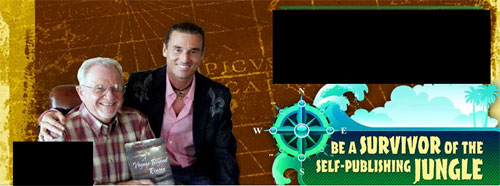
As we began enhancing other elements of the new Timeline masthead, this Survivor graphic was replaced with something else, and we’ll discuss that next…

How to create a “Cover” for the new Facebook pages

Now that the new Facebook Pages and its timeline motif have been thrust upon all of us recently (and don’t think you’re exempt if you don’t have a Company page; personal profile pages will be forced into the Timeline on April 15th), we were faced with the task of branding Outskirts Press within the new look.

As you may or may not recall from a Facebook series of posts I wrote a while ago, in which I shared the process of branding your Facebook presence, our Facebook page at Outskirts Press has looked like this for a while:

And then suddenly, it looked like this:

No branding to speak of, really. Fortunately, with the new Facebook timelines, you have the option of creating a “cover” to your Facebook profile page.  Here are some rules to keep in mind when designing your own cover (which is just FB’s fancy way of referring to a main graphic).

  1. It should be at least 399 pixels wide, but 851 pixels wide is better and 315 pixels tall is recommended.
  2. It cannot feature pricing or discount/promotional information.
  3. It cannot contain contact information or website addresses.
  4. It cannot contain call-t0-action statements.

In other words,  it can’t contain any of the elements normal marketers use to, you know… sell stuff. But it can be designed to brand your page, and then through various tweaks to the timeline itself, you can move some of those promotional tactics elsewhere. I’ll tell you how as we continue this series of posts…

Customizing new Facebook pages

Since it could have easily been confused for an April Fool’s Day joke, Facebook decided to change all the Company Pages to the “Timeline” motif at the end of March, but certainly the close proximity to April 1st is not just a happy coincidence.  For entrepreneurs or companies that have spent a lot of time tweaking their Facebook profile and company pages to get them just right, having to start again from scratch is a little annoying. Note to Zuckerberg: Your hobby doesn’t have to become our hobby.  In all fairness, this change seemed inevitable because I’m sure the “old” way was overloading their servers.  The “Timeline” presentation of data is much more efficient in terms of server access for its approximately 500 million daily users.

Okay, so now that the change is upon us, in the coming days I’ll share some tips and tricks to help you change your page from looking like this (which is what ours at Outskirts Press looked like on April 1 – April Fools indeed)…


… to looking like this…